
















February 2, 2015
3 Go-To Lightroom Editing Tips | Ask Anything

I definitely have a love-hate relationship with editing. Sometimes I love seeing how a few simple edits can transform an image, but other times I get so frustrated when I can’t get an image to look like the vision I have in my head. But that frustration is becoming less and less as I learn and practice editing! I’ve been putting off doing an editing post for a while because I was always changing the way I edit my pictures! As I learned more and developed my style, I started to become more consistent in the way I edit. There’s really no right or wrong way to do it- it’s all about your style! My style is clean, bright, vibrant images that pop! I strive to achieve this FIRST and foremost in the way I shoot, and then I just enhance that style through editing. You can only make an image look the way you want it to if you get it right IN CAMERA! There’s no amount of editing I can do to make an image that’s poorly exposed or has harsh shadows to look the way a nice evenly lit image would.
People often ask me if I use presets for my editing- the answer is no. I have developed my style of editing by simply practicing and figuring out what I like. I also find that there’s no single edit that would work for all my images. Each image requires different tweaks and enhancements. I am usually making the same changes, but in different amounts depending on the image and what it needs. A big part of how I learned Lightroom was by watching tutorials and reading other photographer’s blog posts about tricks they use. Now that I am editing my own images in a more consistent manner, I’d like to share a few of my go-to tricks that I always use!!
Tone Curve. The Tone Curve section in Lightroom is definitely the heavy lifter in my editing. This section allows you to control the brightness of different parts of the image- highlights being the brightest part of the image and shadows being the darkest. So if I want to make the shadows a little deeper, I will pull the shadows a little bit to the left. My usual edit for this section is to pull up the Lights and the Darks and pull down the Shadows. This really makes the image POP!! It gives it so much life! You will definitely want to be careful about the amount you adjust the sliders. This is a very powerful edit, so it’s very easy to overdo it- especially with pulling up the lights! You can see in the screenshot below that I have the lights pulled up to 30. That’s definitely on the high side. I can only pull that off when they’re aren’t any harsh highlights in the image. But since this image is pretty evenly lit, I could really crank up the lights! 
To demonstrate the effect the tone curve has an the image, I’ve included a screenshot of the image with ONLY the tone curve adjustment turned off. This means that all the other edits are the same- exposure, color, temperature, etc. The only difference between this image and the one above is those three sliders in the tone curve. What a difference!!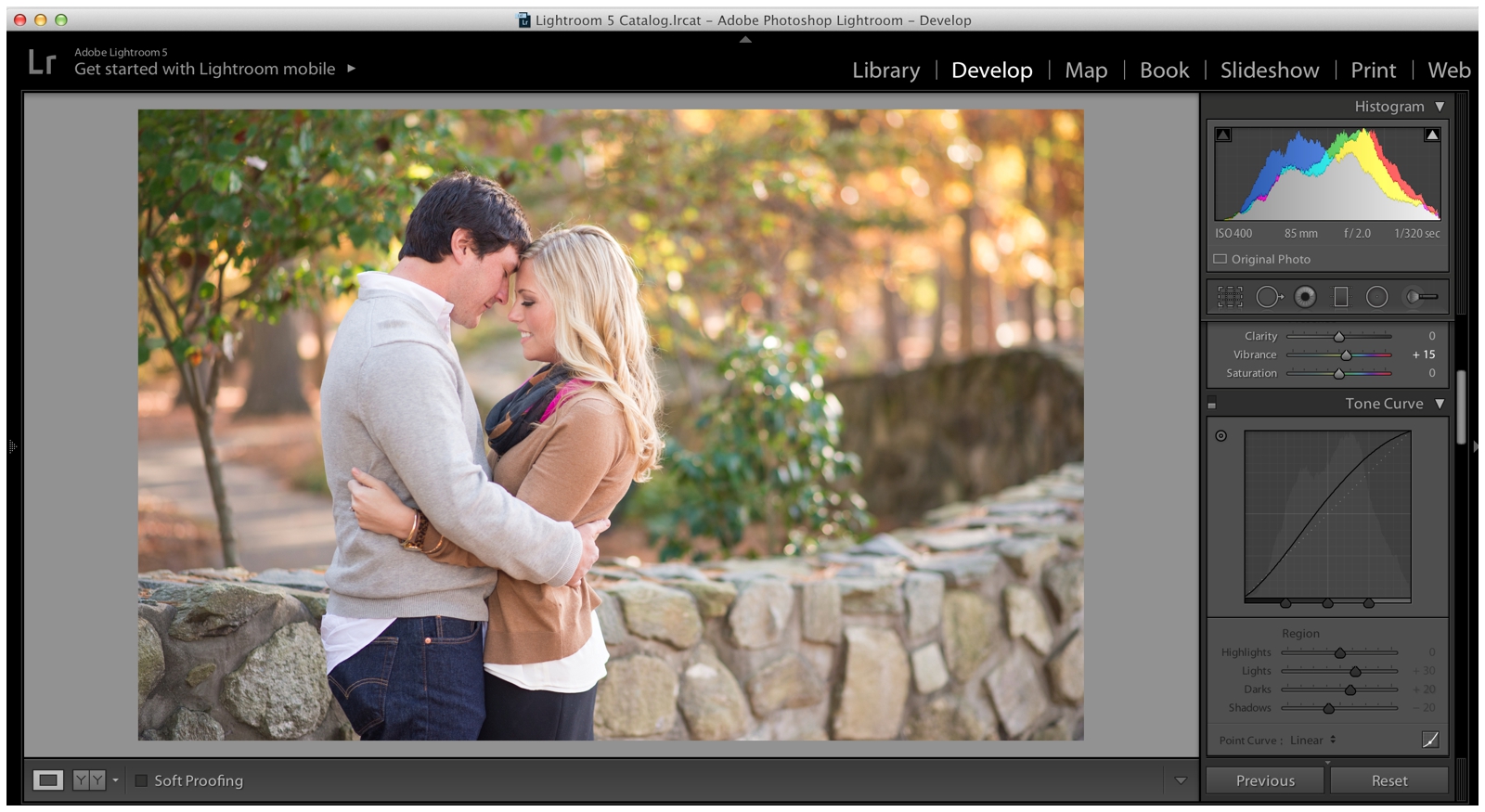
Before (SOOC) and After!
Green Primary. I prefer the colors in my images to be natural and soft, but not overpowering. I try to avoid that over-saturated look. Sometimes the greens in an image can look a little yellow. I prefer for the greens to be more soft and muted. One little trick that makes such a big difference in this regard is changing the hue of the greens. At the very bottom panel in Lightroom there’s a section called Camera Calibration that allows you to adjust the hue of the greens in the image. I like to pull it up towards the teal-ish green and away from the yellowish green. 
Here’s a before and after demonstrating the effect of just this one tweak!
Local Ring Adjustments. When doing close-ups of engagement rings, the ring will often pick up colors from the things around it. The flower you put it in, the tree above you or even the shirt you’re wearing can reflect a color cast onto the ring! These ring shots are supposed to show off the bride’s new bling, so we certainly don’t want it looking dull or dirty! One thing I do for all my ring shots is the use the brush tool to make local adjustments on just the ring. This way I can lower the saturation to remove any color from the diamond. This makes it look nice and clean again! I’ll also bump up the sharpness so the facets of the diamond are really well defined! 
Here’s a before and after demonstrating this adjustment. It’s very subtle, but you can really tell how the ring on the right looks much cleaner after removing the orange tint from it!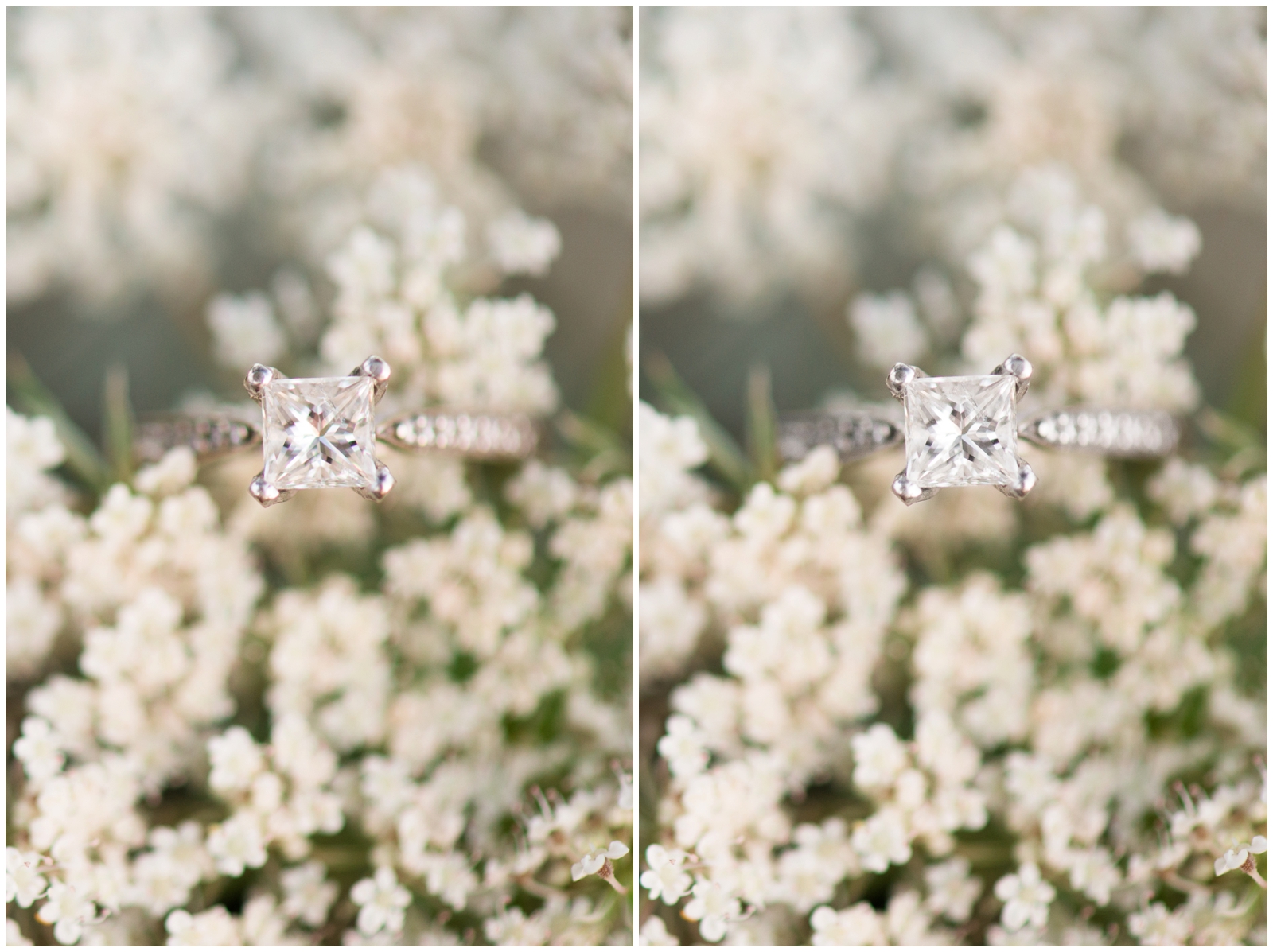
So these are 3 editing tricks that I love to use! I am by no means an expert at this or even claim that the way I do it is the “right” way. This is just the way I do it! Hope this was helpful! If there’s any other photography topics you’d like to see on the blog, let me know! :)
Want to see more from the ‘Ask Anything’ series? Click the links below!
How to do a Same-Day Slideshow
5 Tips for Shooting in Natural Light
Planning Ahead Using the Sun Seeker App
Love this post. Love reading your photographer posts, I’m so bad at it! Wish I could blog about stuff like that more.
Thanks Nicole! You are so sweet!! I bet you could do some great photography posts! :)
Great post Audrey! Well done :) Nice that you share what you have learned :) My best wishes to you!
Thanks Anna! Hope you’re doing well!! :)
These tips were perfect for a new lightroom user like myself!! Thanks for sharing. :)
So glad this was helpful, Kelsey! That’s awesome that you’re using Lightroom! Smart girl! ;)
Amazing!! Thanks so much for sharing your tips! The shots look beautiful : )